Certification courses designed to guide you from a beginner to an experienced practitioner.
Time
Weekly Focus
Monthly Focus
Month Year
Meditation Analytics
Average Quality
0%
Mindfulness / Time
Mindfulness Ratio
0
Mindfulness per minute
Total Mindfulness
0h
Focused Time
Mindfulness Trend
Track mindfulness quality across sessions
Daily Awareness
Daily mindful quality & total practice time
Mindfulness-Alertness
This month
Performance Comparison
Period
Session
Total Hours
Quality
Mindful per min
Focus Level
This Week
Focus Trend
Average focus level across meditation sessions
This Month
Cultivating Pāramī
Select Pāramī
Dhammapada
Pāramī
Choose Goal Type
Meditate
Track Mindfulness
Cultivate
Track Progress
Create New Goal
Back up & Restore
Backup & restore data from file:
Log Session
00:00
0
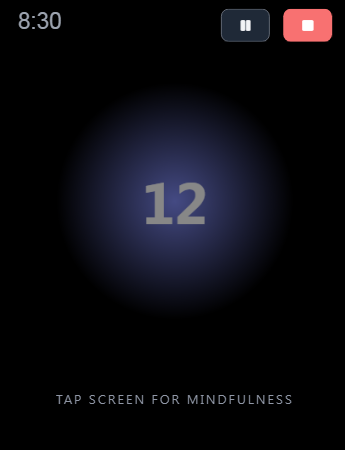
Tap Screen for Mindfulness
Session Complete
0
Mindfulness
0m
Time Spent
100%
Drag to adjust the actual mindfulness count
Quiz
Answer all questions correctly to complete the lesson.
Meditation Session
Day Details
Activity Log
Message
Interaction Settings
Tap to record mindfulness, Hold to record alertness.
🔥 Focus Level:
1 Tap: Low;
2 Taps: Medium;
3 Taps: Good.
15 consecutive logs ≤ Distraction Threshold: Low → Medium → Good → High
Let record a mindfulness after each auto-vibration
1st touch to "wait", 2nd touch to "confirm".
(Only applies to Low focus level).
✨ Meditator's Journal
Meditator's Journal is an application designed to support both spiritual practice and daily work. The app helps practitioners track progress in their professional tasks as well as meditation sessions, recording levels of awareness through "Mindfulness" counts, and visualizing mental states via real-time charts and graphs.
✨ Core Concepts
To use the app effectively, you should understand the following indicators:
Mindfulness: A unit for measuring awareness. Every time you recognize your breath or mental state and touch the screen, one "Mindfulness" point is recorded.
Mindful State: A state where the frequency of noting remains stable and regular.
Unmindful: A state where the mind is distracted or drowsy, resulting in few or no recordings over a period of time.
Diligence Streak: The number of consecutive days you have maintained your practice.
✨ Key Features
1. Diverse Goal Management
Two main types of goals:
ॐ Meditation: Tracks meditation duration and counts mindfulness recognitions.
⚡ Cultivation: A traditional countdown timer used for work, study, or other practice.
Customization: Set daily goals, target completion time, representative colors, and management categories.
2. Interaction Settings
In the meditation interface, tap the button to open interaction settings. The app supports haptic feedback vibration and helps you record two mental states simultaneously with 4 levels of mindfulness intensity.
Tap = Mindfulness (Keeping the mind on the Object): Lightly tap the screen to record focus on your meditation object. For example: one tap for each full breath (in & out) counts as one mindfulness.
*Combo Mechanism: Every session starts at Low intensity. For every 15 consecutive entries with a time gap ≤ Distraction Threshold, the focus level increases by one tier (Low → Med → Good → High). Exceeding the threshold resets the combo to Low.
*Manual control: Allows you to actively categorize your focus level based on specific hand gestures:
1 Tap: Low;
2 Taps: Medium;
3 Taps: Good.
Hold = Alertness (Recognizing mental states, Detecting distractions): Press and hold the screen to record Alertness. Alertness is when you realize your current state of mind (e.g., catching your mind wandering, having stray thoughts, or losing focus on the object). This is the moment of recognition and returning.
*Reminder Mode: If you continue to hold longer after registering alertness (exceeding distraction threshold), the system will trigger random vibrations to help you stay awake. Since this is system-assisted support, awareness points will not be awarded for these instances.
Guided Meditation Mode: Acts like a gentle tap from a Zen master to awaken your mindfulness.
The system utilizes your custom Vibration Interval to maintain a steady guiding rhythm for the meditation session.
Haptic signals (gentle and varied) are randomized in intensity, this keeps the mind alert and prevents the formation of "autopilot" or unconscious reflexes.
Your task: Every time you feel the vibration, use it as an anchor — check where your mind is, gently pull it back to the present, and register a mindfulness touch.
Confirmation Mode:
Designed for users who may tap unconsciously. When enabled, the first tap won't be recorded immediately. You must tap a second time (within 1-3 seconds) to confirm it as a conscious action.
Only the timestamp of the first tap is recorded.
Confirmation mode only applies when the mindfulness level is at Low.
Note: Haptic feedback requires a device that supports vibration mode.
Manual Entry: Forgot to start the timer? You can manually log a session or edit previous records.
3. Statistics & Data Analysis
Dashboard: View today's progress relative to your set goals.
Practice Calendar: A grid heatmap showing daily practice intensity. More colors represent longer practice durations.
Visual Charts:
Session Graph: Review mindfulness levels within a specific session (line chart).
Weekly/Monthly Statistics: Compare performance over real-time intervals.
Focus Level Chart: The "Exploration" tab displays the distribution of focus level (High/Low) over weeks & months.
4. Meditation Analytics
The "Analytics" tab helps you reflect on the quality of your mind during meditation sessions with higher precision.
Goal-specific analysis: You can view data for specific goals (e.g., "Sitting Meditation" or "Walking Meditation") to compare the progress of different practices.
Distraction Threshold:
This is the most important concept for calculating your "Meditation Quality."
"Distraction Threshold" is the maximum allowed gap between two mindfulness logs; if this time is exceeded, the system considers you were distracted.
How it works: For example, if you set the threshold to 12 seconds:
If you tap after 5 seconds: The entire duration is counted as Mindful.
If you tap after 20 seconds: The system calculates that you were distracted or drowsy for 8 seconds (20 - 12 = 8).
Individual Customization: Different practices require different paces. You can set a low threshold (e.g., 5s) for fast-noting exercises, or a higher threshold (e.g., 30s) for deep concentration. The system remembers these settings for each goal individually.
5. Privacy & Data Security
Fully Offline: 100% of data is stored directly in your browser. No data is sent to any server.
Backup & Restore: Easily export data to a .json file for safekeeping or to transfer to another device.
✨ The Pāramī System
The achievements system is organized into Pāramīs (Perfections) to encourage your diligence. Here are some key milestones:
🔥 Consistency Streak:
Pāramī
Condition
Meaning
Walking Path
3 Days
The practitioner's first steps.
Blessings
7 Days
Accumulating wholesome roots in a week.
Willpower
30 Days
Practice has become a habit.
Satipaṭṭhāna
49 Days
Seven weeks of diligent practice.
Great Hero
90 Days
Extraordinary power of diligence.
Timeless
365 Days
Limitless perseverance.
🌱 Total Mindfulness:
Pāramī
Count
One-Pointedness
100
Purification
500
Contentment
1,000
Offering
10,000
Bliss
50,000
Suchness
100,000
⏳ Total Practice Time:
Pāramī
Duration
Present
1 hour
Mindfulness
10 hours
Stream Entry
50 hours
Ardor
100 hours
The Void
1,000 hours
⚠️ Important Data Notice:
Data is stored in the browser's IndexedDB (Secure & Large capacity).
Do not clear browser history/cache without backing up, or your data will be lost.
How to Backup: Go to the left sidebar, select "Backup" to download the file.
How to Restore: Select "Restore" and upload your backup file.
Technologies: HTML5, CSS3, JS (ES6+). Libraries:Chart.js, FontAwesome.
Download Link & Source Code: here. Wishing you peace and diligence!